Custom Writing Styles
Learn how to leverage Harvey's Custom Writing Styles feature to tailor outputs to your company's brand identity or individual preferences.
Last updated: Mar 19, 2026
Overview
Custom Writing Styles let you define how Harvey writes so that outputs consistently reflect your organization’s voice, legal conventions, and formatting standards.
Instead of repeating instructions in every prompt, you can create reusable style guides and apply them with a single selection.
With Custom Writing Styles, you can:
- Standardize outputs across your organization
- Reflect jurisdiction-specific language and conventions
- Align responses with firm or organizational guidelines
- Reduce repetitive prompting and improve consistency
Create multiple style guides for different use cases, then select the one that best fits your prompt to shape Harvey’s response.
Key Concepts
Key Concept | Definition | Examples |
|---|---|---|
Custom Writing Style | A reusable set of instructions that defines how Harvey structures and writes responses. |
|
Style Instructions | The specific guidance included in a style |
|
Applied Style | The writing style selected in the Assistant. Harvey uses this style when generating responses. |
|
Sharing Permissions | Users with the permission |
|
Create a Custom Writing Style
- In Assistant, select the Settings icon

- Select Create
- Give your style a name
- Upload or type out style instructions
- Select Continue to save
Note: New styles are set to private by default.
Apply a Writing Style
- In Assistant, select the Settings icon
- Select the writing style you want to apply
- Enter your prompt and run it
Harvey applies the selected style automatically to its response.
Note: Admins can share styles by default; users will need the client_admin:writing_styles permission to do so.
- In Assistant, select the Settings icon
- Select Create and edit styles
- Select Share and choose to share with your workspace
The style becomes available to all users in your workspace.
Enable Custom Writing Styles
All users can create a custom writing style by default.
Enable Sharing Custom Writing Styles
For a user to share writing styles in the workspace, an admin needs to grant the user the permission client_admin:writing_styles.
Users with this permission will see a sharing option in writing style creation.
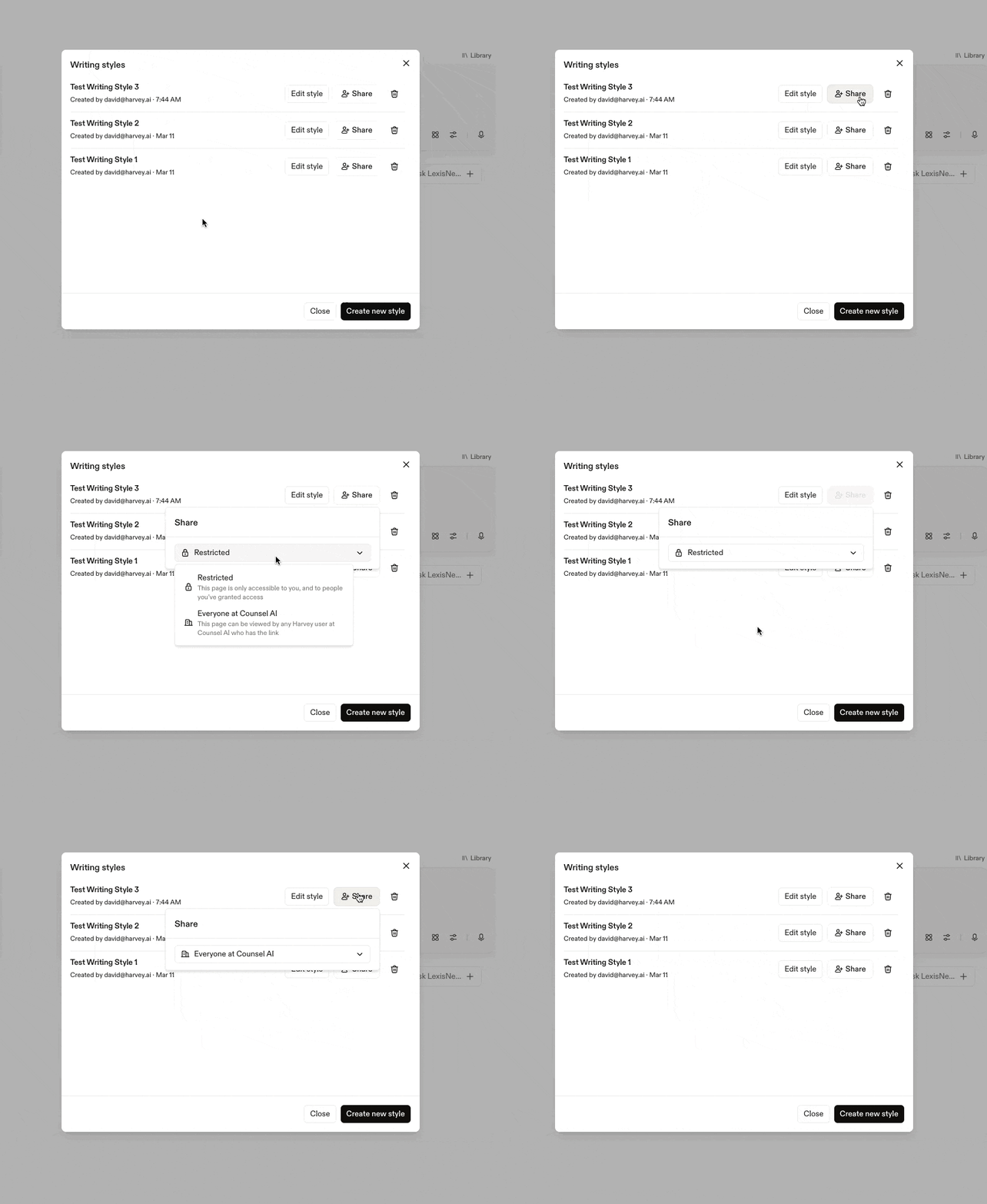
Note: Sharing with a specific sub-set of users is not possible at this time.
Limitations
Custom Writing Styles support flexible customization, with the following constraints:
Character and File Limits for Style Instructions
- For PDFs: Upload up to a 20 page PDF
- For text or .docx files: Up to 50,000 characters
Style Adherence
- Very long or highly complex style guides may not be followed consistently
- Ambiguous or conflicting instructions can reduce adherence
- If a prompt is complex or has a heavy context load (e.g. hundreds of documents), the model may prioritize task completion over strict style adherence
Tips for Success
- Keep style guides clear, straightforward, and well-structured.
- Emphasize the most important elements (e.g. tone, structure, terminology)
- Ensure prompt instructions align with the selected style
- Refine your style over time to improve reliability